Install Browsec VPN on iOS
The Browsec app is not available in the Russian App Store.
To install it, change your account region.
After installation, you can switch the region back — the app will remain.
💚 This is completely safe. No data from your device or Apple account will be affected.
Open the App Store
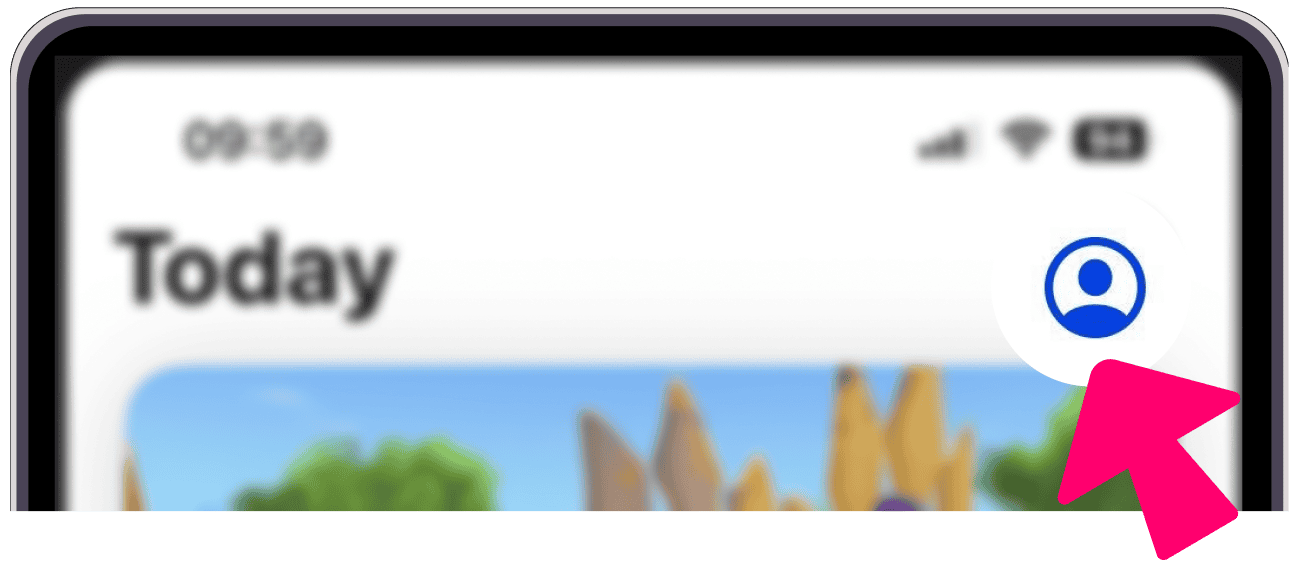
In the App Store, tap on your avatar in the top right corner
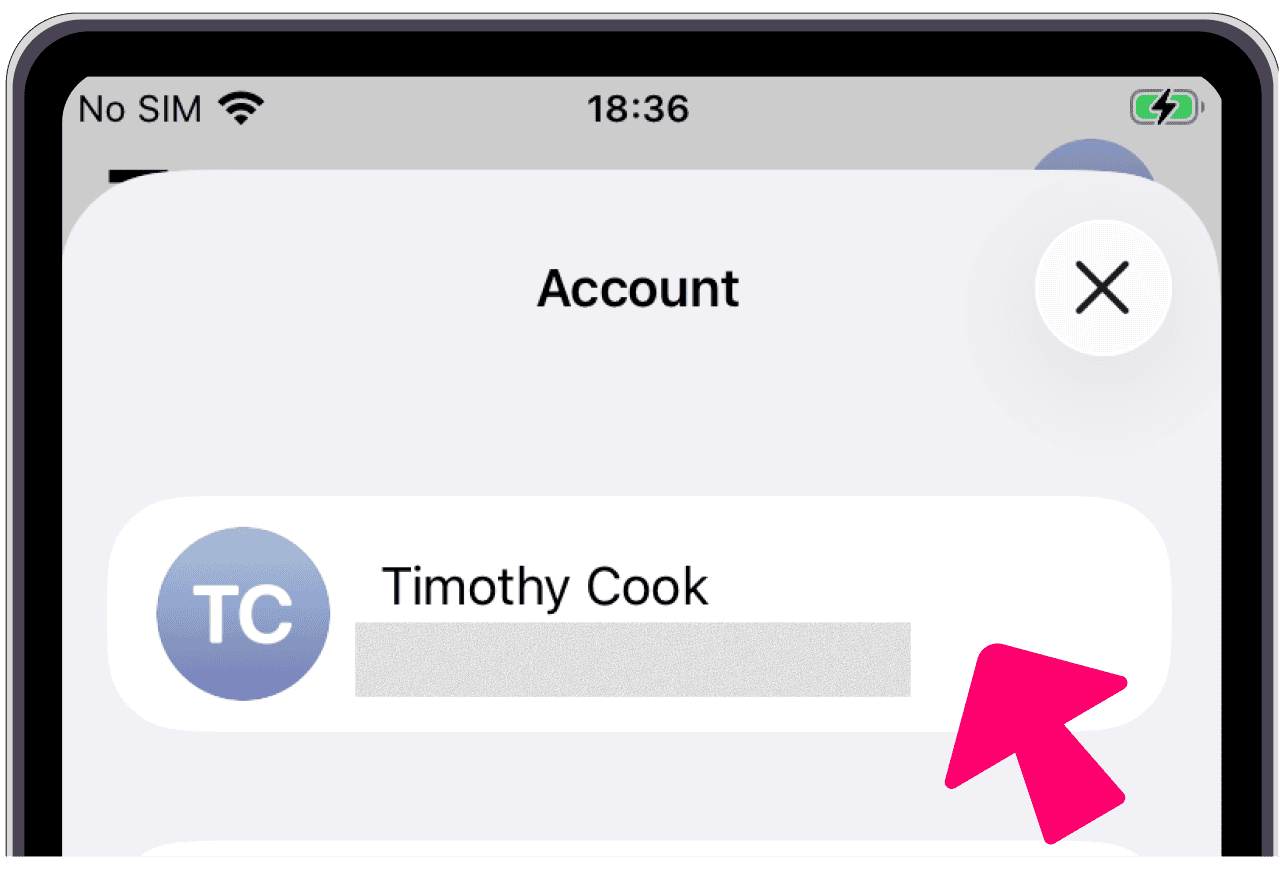
On the Account screen, tap your name
If the App Store asks for your account password, enter it.
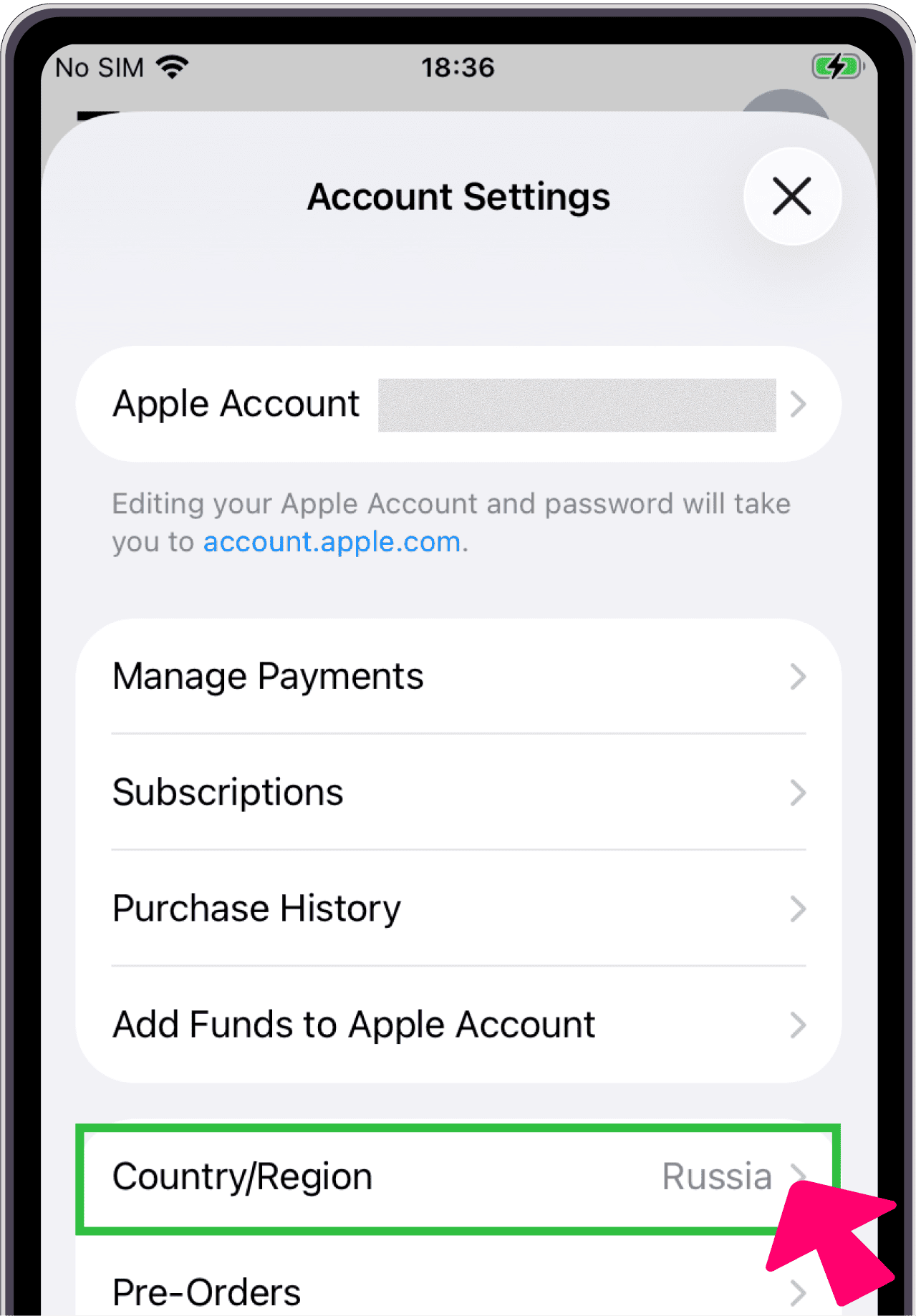
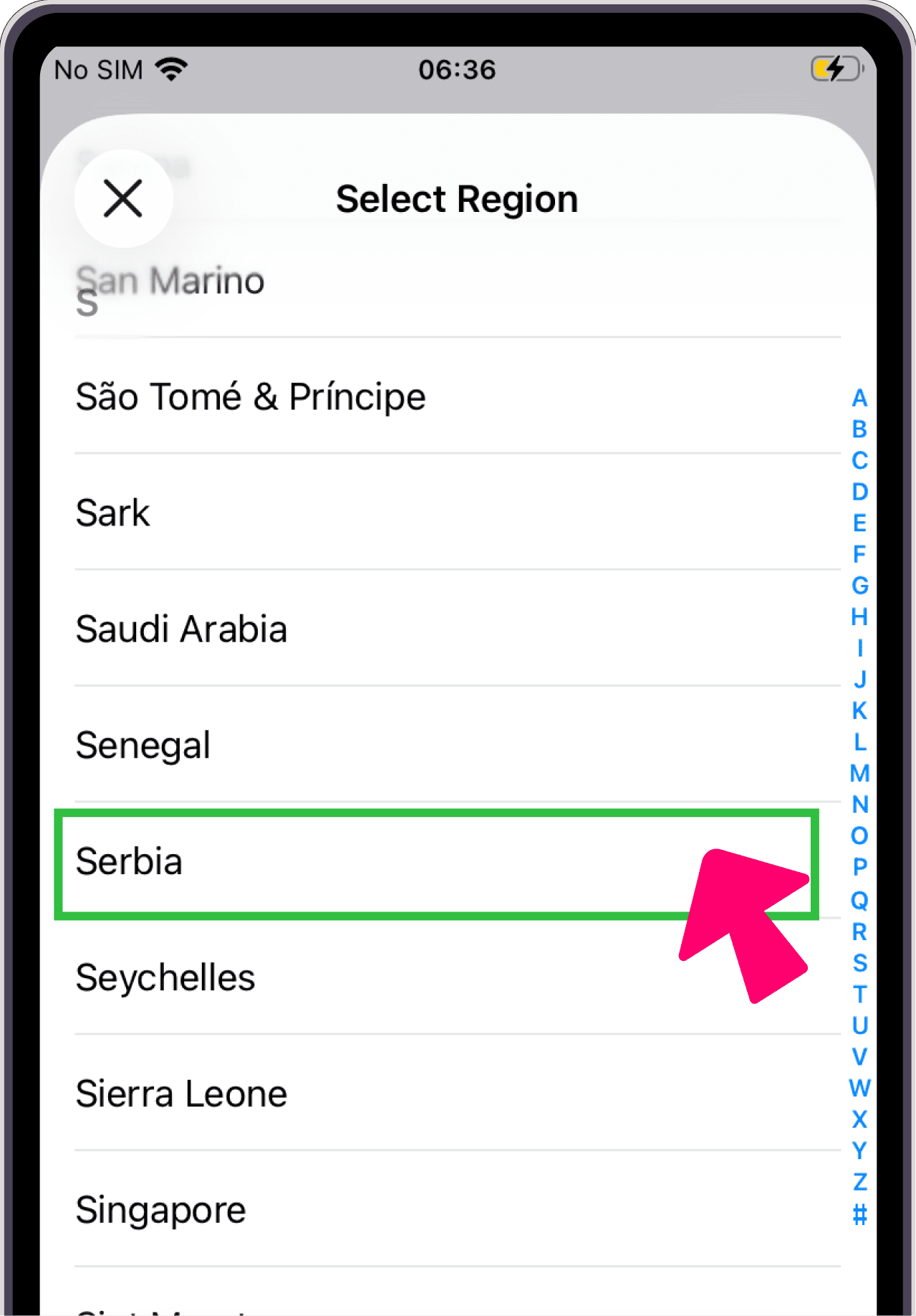
Tap "Country/Region"
Select Serbia
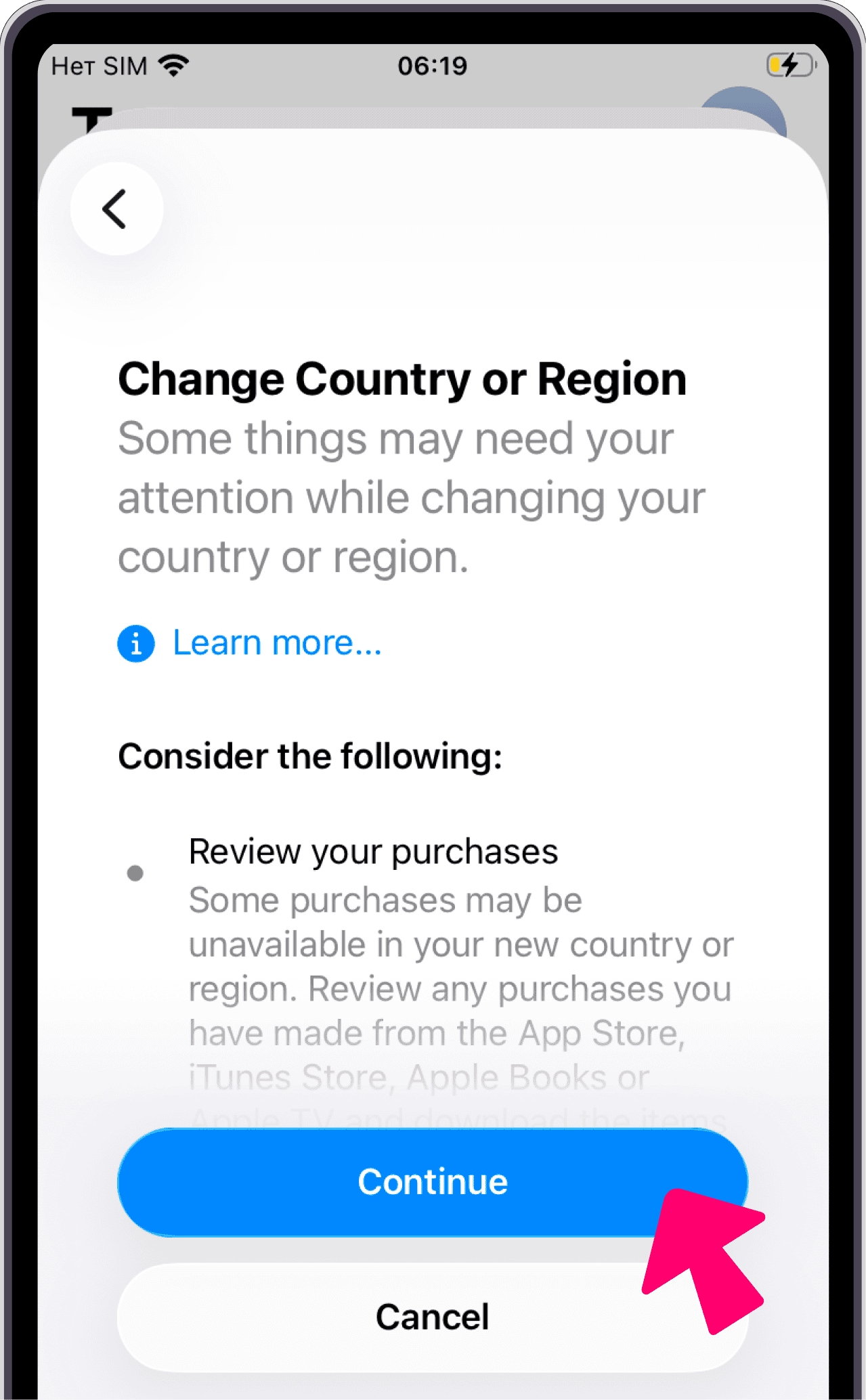
Tap Continue
On the "Change Country or Region" screen, tap Continue.
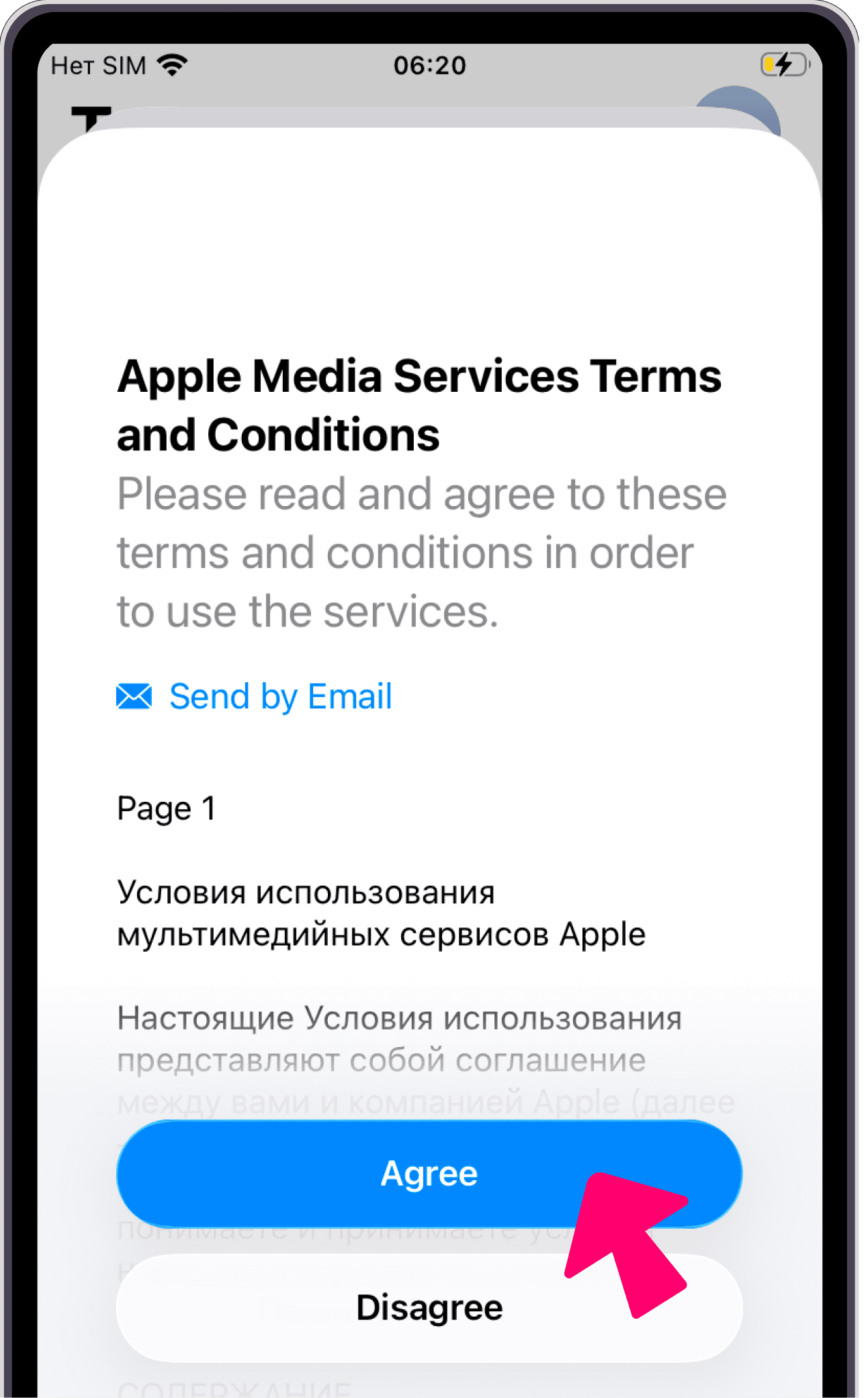
Accept the Terms and Conditions
Accept the Apple Media Services Terms and Conditions.
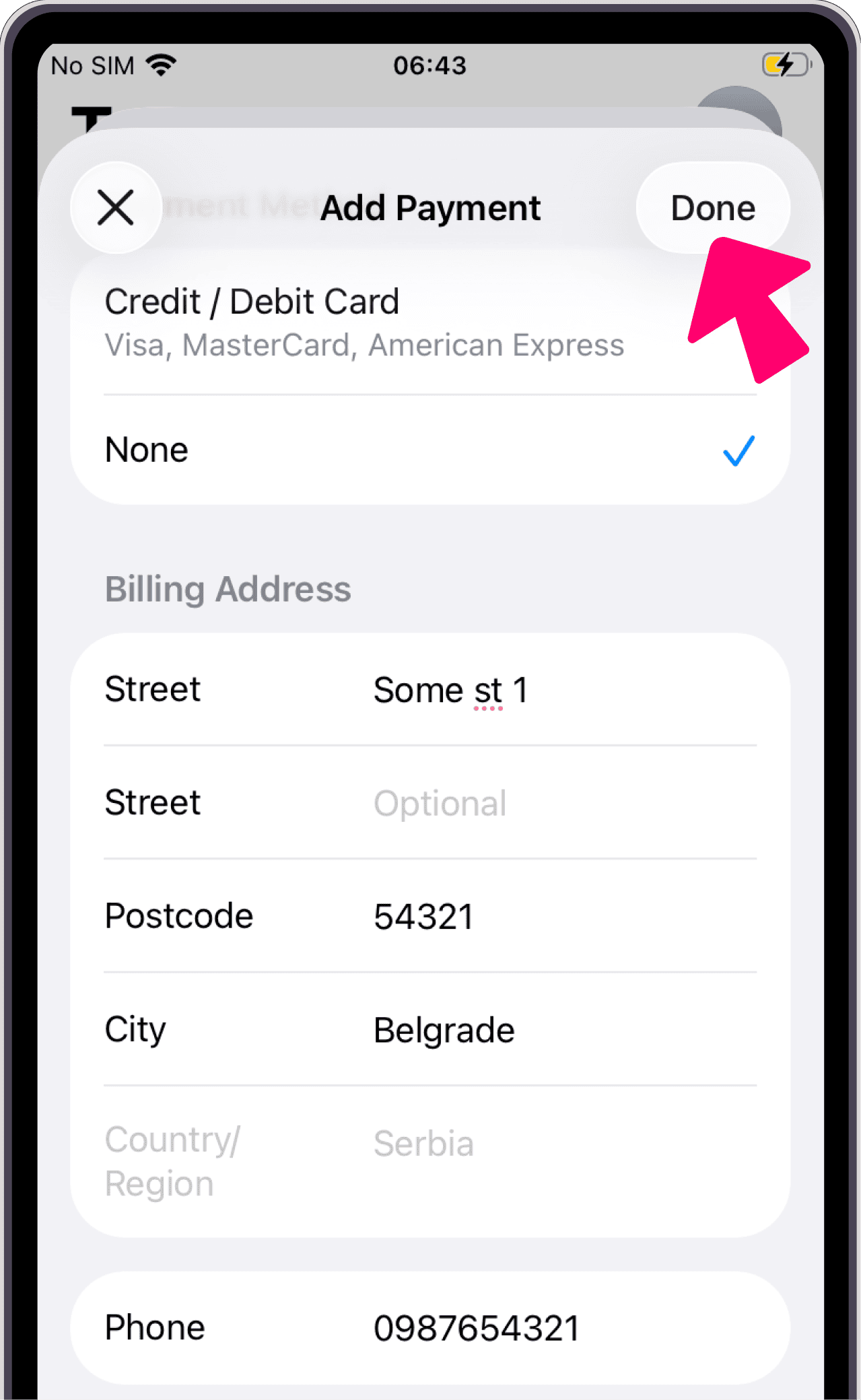
Fill in payment details
Details are not verified, you can enter anything:
- Payment method:
None - Street:
Some St 1 - City:
Belgrade - ZIP code:
54321 - Phone:
0987654321
If Browsec is already installed, DELETE IT
Your account login and premium status will be preserved after reinstallation.
If you don't delete the app, updating will require signing in with the account it was originally installed from.
And you won't be able to sign into that account anymore.
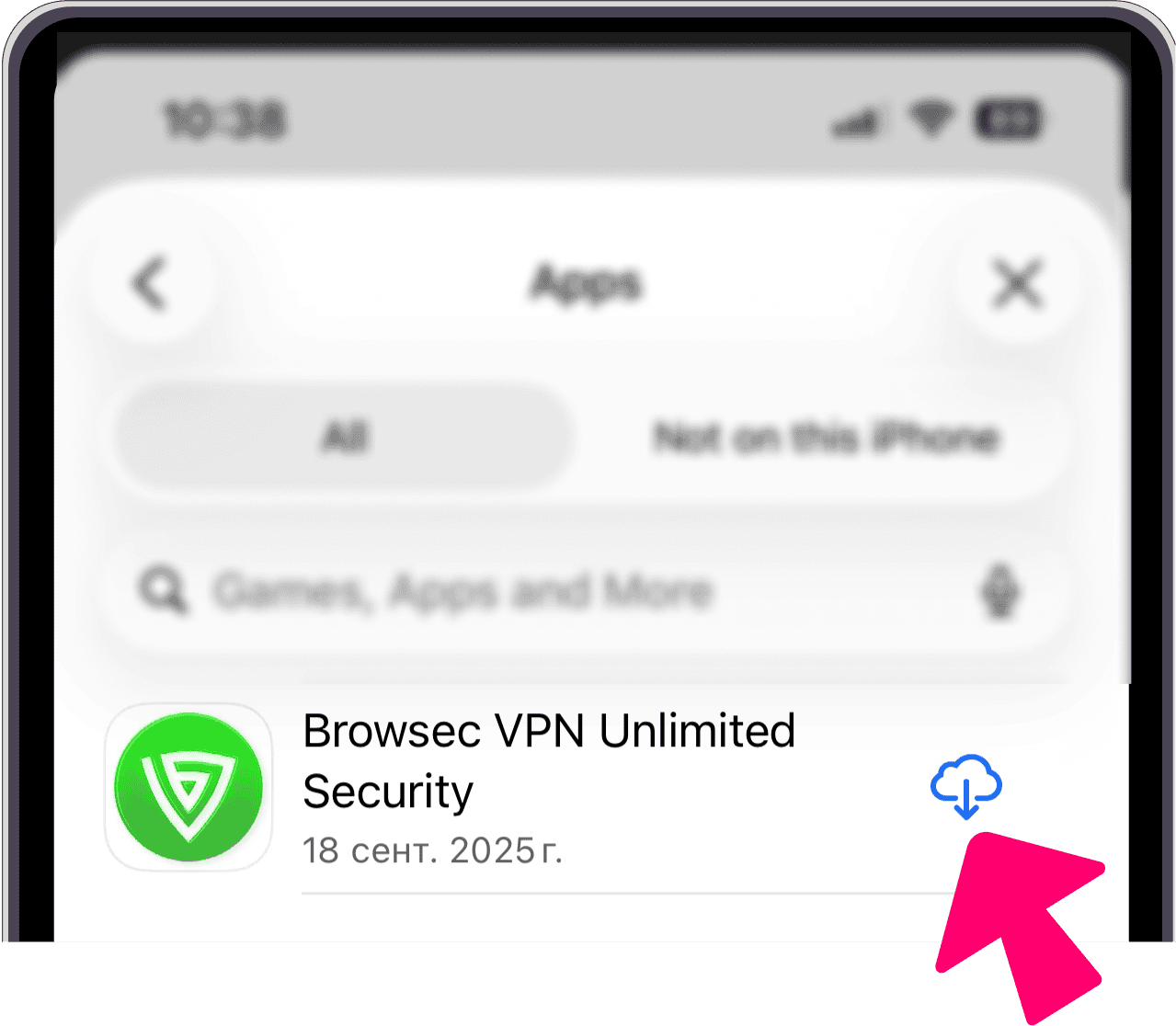
Download the Browsec app
Search for Browsec in the App Store or follow this link: https://itunes.apple.com/app/apple-store/id978583103
Switch your region back
Repeat Steps 4–8, but select Russia.
The app will remain on your device and continue to work.
Frequently Asked Questions
You need to contact Apple Support.
Support website: getsupport.apple.com/products
Navigation is easy:
- Apple Account
- Other Apple Account Topics
- Clear Apple Account balance
- The Chat option appears
In Chat type: "Hello! I need to clear the balance on my Apple account." Then follow the instructions from Apple Support.
If you have a Browsec Premium subscription from the App Store, please contact us via support@browsec.com, through the "Feedback" option in the app, or using the contact form on our website. We will grant your Browsec account premium status so you can continue using the service.
To speed up the process, please include the screenshot of your most recent payment confirmation from iTunes and make sure to have a Browsec account. If you don't have an account yet, you can create it here.
You can purchase a new subscription directly on our website.
Try these solutions one by one:
- Make sure you have switched the country or are using the correct Apple ID in the App Store.
- Sign out of your account in the App Store, restart your device, sign back in, and try updating the app again.
- Delete the old version of Browsec and download the new one from the App Store
Contact us via support@browsec.com, through the "Feedback" option in the app, or using the contact form on our website.